What is AI Check?
When you write text notes or build ThinkTray diagrams on your own, it’s easy to miss gaps or mistakes. AI Check lets you get objective feedback from an AI on the content of the file you currently have open.
- You interact with the AI through chat. The first message uses the default prompt, which you can change in the app settings. Whether you want a one-time overall review after working through an idea or want to refine it through conversation, you can ask the AI through the same chat interface.
- AI Check is available in editors such as text (.txt) and ThinkTray (.tt.svg) whenever the 💡 AI Check button appears in the upper-right corner of the screen.
- Since AI Check never changes the file, you can use it even on read-only files.
When is it useful?
- When you want a third-party perspective on a note, text, or diagram you created on your own
- When you want to discuss your ideas while putting them into words or before creating a framework
- When you want to review something you consider finished one more time before submitting or publishing it
Getting ready: Set up your Gemini API key
AI Check uses a BYOK (Bring Your Own Key) model. TextTree has no login system — you bring your own API key issued by Google through Google AI Studio.
- Open the app settings and go to the AI Check section.
- Enter the Gemini API key issued by Google AI Studio in the API key field. The key is stored only in this browser on this device and is never collected by TextTree.
- Select a Model name. You can also type a model name directly, so enter it manually if the model you want is not listed.
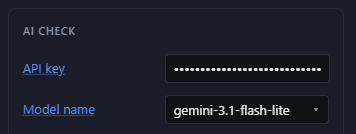
The same settings screen also lets you adjust the max payload size, the conversation history limit, and the initial prompt text.
How to use it
In supported editors, a 💡 AI Check button appears in the pane header.
- Click it to open a chat panel on the right. The input field is pre-filled with an initial prompt (a default you can freely rewrite), but it is never sent automatically.
- Review it and edit it if needed. Press Enter or click Send to send it to the AI together with the current file content.
- Long paragraphs in the AI’s reply are shown collapsed. Click a paragraph to expand or collapse it individually.
- Use the 🗑️ Conversation button when you want to reset the conversation and change the subject.
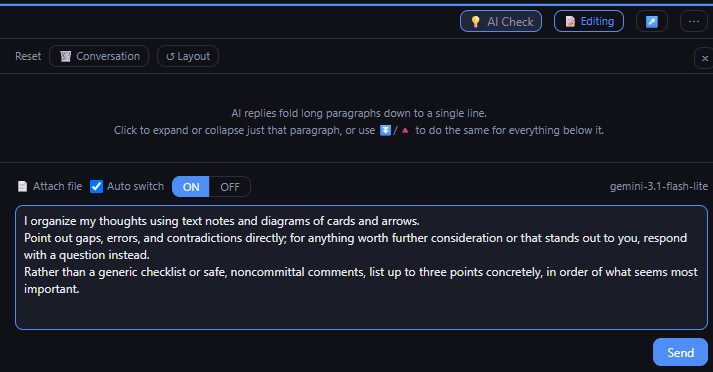
Turning file attachment on and off
Near the input field is a 📄 Attach file switch and an “Auto switch” checkbox that control whether the file content is sent along with your message.
With “Auto switch” ON (the default), the switch directly shows whether there is anything new to send. It turns ON automatically when you edit the file and turns OFF after sending because there is nothing new left to send. You can also turn it OFF manually if you do not want the AI to see your latest edits.
For text (.txt) files
Notes and other text are sent to the AI as-is, without any special conversion. A little care in how you write them can therefore help.
Adding a brief description on the first line, such as “These are notes about …,” makes it easier for the AI to understand the context of the entire document without requiring you to explain it in every prompt. This has the same effect as the Overview field in .tt.svg and .tt.html files, with just one extra line in the text itself.
For ThinkTray (.tt.svg) files
ThinkTray uses cards and arrows to organize ideas, so layout and grouping can be difficult to convey through text alone. AI Check sends the AI both an image of the content shown on screen and a minimal text summary of the cards and their connections.
For ThinkTray (.tt.svg) and the rich text editor (.tt.html), filling in a title and description with the 🏷️ Overview button in the toolbar helps the AI understand what the file is for (this is optional).
In diagrams with many cards and a lot of detail, the image may become harder to read, making the intended layout and grouping more difficult for the AI to understand.
About sending content outside TextTree (to Google)
Even with BYOK, using AI Check sends the content of your open file to Google’s Gemini API.
- Content is sent only when you press the Send button.
- Your API key is stored only in this device’s browser
localStorageand is never collected by TextTree.
See the “About the AI Check Feature” section of the Privacy Policy for details.